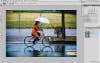
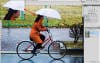
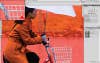
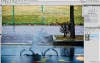
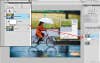
Shooting for a blurred panning effect—by moving with your subject to keep it sharp while the background goes fuzzy—isn’t easy. It takes planning, practice, and often some cooperation from your subject. And sometimes you find yourself in a situation where, as much as you’d like the effect, you’re unable to manage it—such as when you’re shooting a moving subject out the window of a train, as with the image here. Fortunately, motion blur, like many photographic effects, is possible to recreate with software. Here’s how to create a panning effect using Adobe Photoshop. This tutorial takes advantage of CS5’s new tools like Content-Aware Fill and Smart Objects, but the instructions can be used in older versions of Photoshop and Photoshop Elements—you only really need Layers and the Motion Blur filter. LluisGerard – WasabiNoiseSTEP 1 First, as always, duplicate your Background Layer before you start.** ******To fake the blur, you’ll need to select the subject, move her to her own separate layer, then blur the background******.** If you blur the background without first cloning out the cyclist, you’ll see a blurry cyclist behind a sharp one. So before you add the motion effect, remove her. Duplicating the Background Layer ensures that you always have your original to go back to, even if you mess up.STEP 2 Begin by selecting the figure and her bicycle. Type W for the Quick Selection tool and paint to make the selection. ****Hold down the Alt key (Option on a Mac) to paint and remove a selection from where it shouldn’t be.** **Then zoom in, and with a small brush, paint to correct any over- or under-selecting that this tool has done.STEP 3 In CS3 or newer, go to Select > Refine Edge to perfect your selection (CS5 has a new version of this dialogue). **Keep the feathering low, and add a little smoothness to even out jagged edges. Check the box to use Smart Radius for edge detection. **If your selection is still imperfect, exit Refine Edge and then hit Q on your keyboard for Quick Mask to adjust it manually. Here, the basket was so close to the background color that it was undetectable by the auto-selection tools, so I painted in the selection for the entire basket. Hit Q to exit Quick Mask and see your selection again.STEP 4 Type Ctrl (Command on a Mac) + J to jump the selected subject to its own layer. Your marching ants will disappear. Reactivate your selection by holding down Ctrl while clicking on the Layer 1 thumbnail. Now click on the Background Copy layer. **Expand the selection by going to Select > Modify > Expand, and expand by at least 15 pixels. Then go to Edit > Fill and choose Use: Content Aware. Hide Layer 1 to see how it did. **Close is good enough in this case, since we’ll be applying a blur anyway.FINAL STEP With the Background Copy selected, go to Layer > Smart Objects > Convert to Smart Object. Then go to Filter > Blur > Motion Blur. **Set the Angle to zero, and play with the distance until it looks realistic. Click OK, then turn Layer 1 on. **If you need to adjust the blur, double-click on the Motion Blur Smart filter to redo it. F.Y.I. The most complicated of this tutorial is making the selection. We used the Quick selection tool, followed by the Brush tool, in Quick Mask mode. But other methods could work, too. If the subject you want to separate is, on the whole, a different color from the background, try using select > Color range. Hold down the shift key and click on multiple points of your subject to get a selection. The Magic Wand is usually inferior to the newer Quick selection tool, but it will occasionally work when Quick selection has failed you.